


To send your Google review link by WhatsApp or text, copy the link from your Google Business Profile, paste it into a short personal message and send it soon after the job or visit. On a phone, the Google Maps app can share the link straight into WhatsApp or Messages from the review options on your profile. Below are the steps, a few timing tips and some message templates you can copy and adapt.
Get your review link first
Your review link is free and comes from your Business Profile. Sign in with the Google account that manages it, open your profile on Google Search or in the Google Maps app, and look for the option to ask for or get more reviews. On a phone, this usually opens the share menu, so you can copy the link or pick WhatsApp or Messages straight away. If you can't find it, our guide on how to get your Google review link covers the different routes.
Before you send it to anyone, open it yourself in a private browser window to check it lands on your business with the review box open.
Sending it on WhatsApp
- Open the customer's chat in WhatsApp.
- Type a short message (see the templates below) and paste your review link on its own line.
- Wait a second for the link preview to appear, then send.
If you use the WhatsApp Business app, you can save your message as a quick reply. You then type a forward slash in any chat to pick it from a list, and only need to change the customer's name. It saves typing the same message out every time.
Sending it by text
It works the same way in Messages or any other texting app. Paste the link into the message and send it. On an iPhone, you can store the whole message under a short shortcut using Text Replacement in the keyboard settings, so typing something like "rvw" fills in the message and link. Many Android keyboards have a similar feature. Our post on review request text messages has more wording ideas.
When to send it
- Soon after the job or visit, ideally the same day, while the customer still has it in mind.
- Once the customer has seen the finished work. For a tradesperson, that's after they've had a look round, not while you're still packing up.
- At a sensible hour. A message at 10pm feels more intrusive than one at teatime.
- Once, with one polite reminder a few days later at most if they haven't got round to it.
Message templates
Change the details so each message sounds like you. A customer's name and a mention of the actual job make a big difference.
For trades and home services
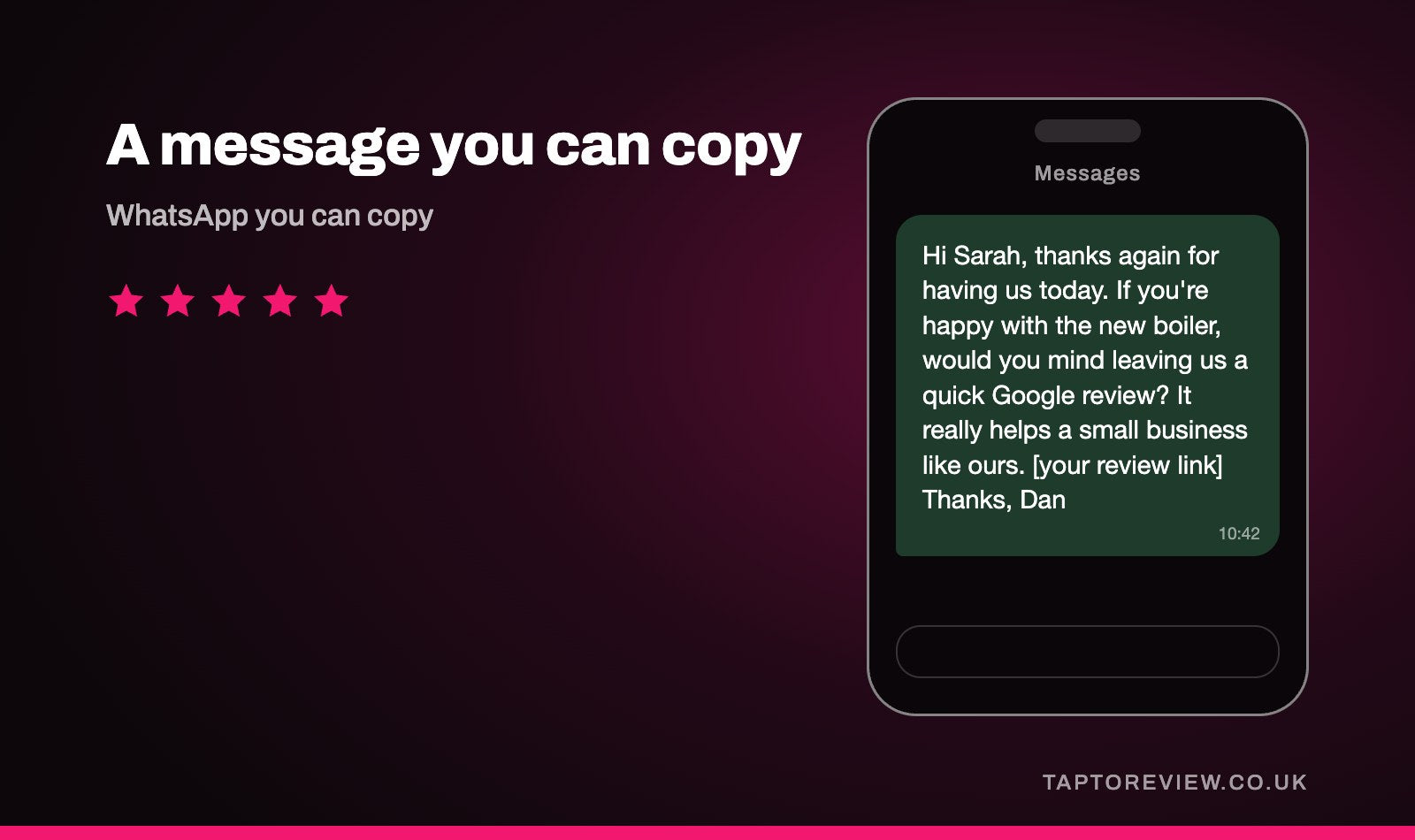
"Hi Sarah, thanks again for having us today. If you're happy with the new boiler, would you mind leaving us a quick Google review? It really helps a small business like ours. [your review link] Thanks, Dan"
For salons, clinics and appointments
"Hi Priya, thanks for coming in today, it was lovely to see you. If you have a minute, we'd really appreciate a Google review. [your review link]"
For restaurants and bookings
"Hi Tom, thanks for dining with us last night. We hope you all enjoyed it. If you'd like to leave us a Google review, this link takes you straight there. [your review link]"
A gentle reminder
"Hi Sarah, just a quick follow-up in case you missed my last message. No pressure at all, but if you get a minute, a Google review would be a great help. [your review link]"
Keep it within the rules
- Send it to every customer, not just the ones you think will be happy. Picking and choosing is known as review gating, and Google doesn't allow it. Our article on review gating explains why.
- Don't offer anything in return, such as money off the next job. Google doesn't allow incentives, and paid reviews are against UK consumer law.
- Don't ask friends, family or staff to post reviews.
- Keep the message about their visit. Adding a promotion or special offer makes it feel like marketing.
- If someone asks you not to message them again, don't.
Messages are good for customers you've already said goodbye to. For the ones still in front of you, it's often quicker to ask in person. A Google review card lets them tap their phone and go straight to your review page without opening a message. Ours are £30 each and arrive programmed with your link.
Common questions
Can I share my Google review link on WhatsApp?
Yes. Paste it into a chat like any other link, or share it straight to WhatsApp from the review options in the Google Maps app.
Should I send the link to lots of customers at once?
Individual messages tend to work better, because they can mention the customer's name and the job. Group messages can feel impersonal.
Why does my link open the wrong page?
You've probably copied a link to your profile or a map rather than the review link. Copy it again from the review options in your Business Profile.
How many reminders should I send?
One at most, a few days after the first message. After that, leave it.