


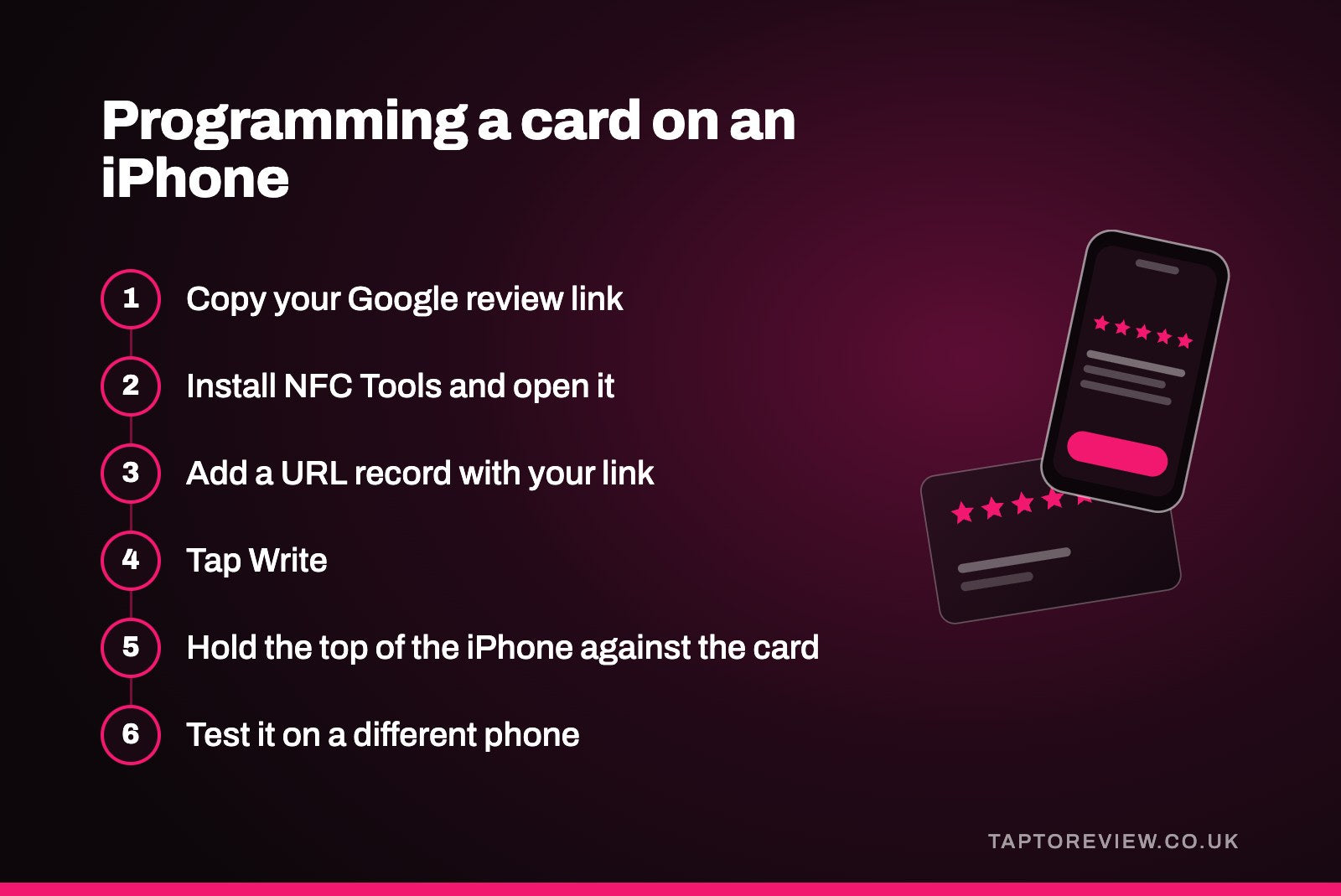
To program an NFC card for Google reviews on an iPhone, install a free app such as NFC Tools, add a URL record containing your Google review link, tap Write and hold the top of the iPhone against the card. Any iPhone from the iPhone 7 onwards can write to NFC cards with an app, and so can most Android phones. Test the card on another phone before you hand it out, and think carefully before locking it, because a locked card can never be changed.
What you need
- A blank NFC card. Look for cards described as NTAG213, NTAG215 or NTAG216. These are the common chip types for links, and both iPhones and Android phones read them.
- Your Google review link. You get this free from your Business Profile. Our guide on how to get your Google review link shows where to find it.
- A phone that can write NFC. An iPhone 7 or later on a recent version of iOS, or an Android phone with NFC.
- A free NFC app. We use NFC Tools as the example below because it's free on both the App Store and Google Play. Other apps work in much the same way.
Programming the card on an iPhone
- Copy your Google review link so it's ready to paste.
- Install NFC Tools from the App Store and open it.
- Go to the Write section and choose to add a record.
- Pick the URL option, paste your review link and check it's exactly right, with nothing missing from the start or end. Confirm it.
- Tap Write. The phone shows a "ready to scan" message.
- Hold the top edge of the iPhone flat against the card and keep it still until the app says the write was successful.
App menus change from one update to the next, so the wording on your screen may be slightly different, but the steps are the same: create a URL record, then write it to the card.
Programming the card on Android
Check that NFC is switched on in your phone's settings, usually under connections or connected devices. Then install NFC Tools from Google Play and follow the same steps as above. The NFC reader on most Android phones is around the middle of the back, so hold the card there rather than at the top.
Test it before you use it
Use a different phone if you can, ideally one that isn't signed in to the Google account that manages your business. Tap the card with the screen on and the phone not locked. Your Google review page should open with the star rating box ready. If it opens a map, a search page or a different business, the link is wrong and you'll need to write it again.
Try it with a phone case on as well, and with an Android phone and an iPhone if you have both to hand. If it reads through a case on both, it should be fine for most customers.
Should you lock the card?
NFC Tools and similar apps have an option to lock a tag. A locked card can't be rewritten by anyone, including you. That's useful for a card or sticker left out in public, where someone with an NFC app could otherwise overwrite your link with their own.
The catch is that locking is permanent and can't be reversed. If your review link ever changed, for example because you moved premises and Google created a new listing, a locked card would have to be replaced. If you're unsure, don't lock it yet. Use it for a while, check it works, and only lock it once you're confident the link is right. NFC Tools also has a password option that blocks rewriting without locking the card for good.
If something goes wrong
- The app says the tag can't be written to. The card has already been locked, or it's a read-only type. You'll need a new card.
- The app says there isn't enough memory. The link is too long for the chip. Use the short link Google gives you rather than a long address copied from your browser.
- Nothing happens. Move the card around the top of the iPhone or the middle of an Android phone, and take off a thick or metal case.
- Wrong page opens. Copy the link again from your Business Profile and rewrite the card.
If you'd rather not do it yourself, you can buy cards that arrive ready to use. Our Google review cards are £30 each and are programmed with your own review link before they're sent, so you only need to test them when they arrive. Our guide on what to compare between review cards may help either way.
Common questions
Can an iPhone write NFC tags?
Yes. iPhone 7 and later can write to NFC tags using an app such as NFC Tools. There's no built-in option for it in the iPhone's settings.
Do I have to pay for the app?
No. The free version of NFC Tools can write a link to a card. There's a paid version with extra features, but you don't need it for this.
Can I change the link on the card later?
Yes, as long as the card hasn't been locked. Write a new URL record over the old one in the same way.
Can I program one card for two locations?
No. Each location has its own review link, so each one needs its own card.