


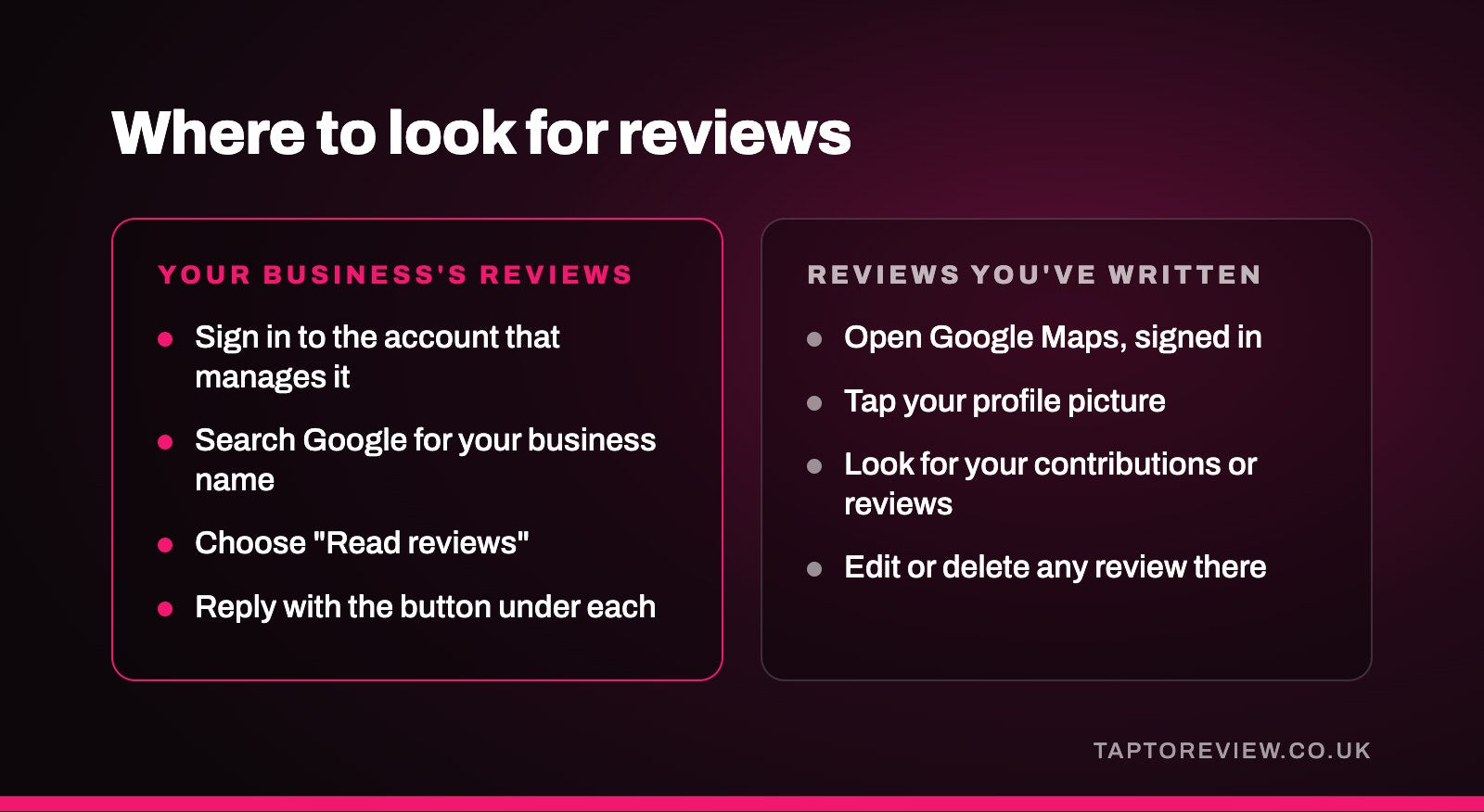
If you own a business, you can see your Google reviews by signing in to the account that manages your Business Profile, searching for your business on Google, and choosing "Read reviews". If you want to see reviews you've written yourself as a customer, open Google Maps and go to your contributions. Both take less than a minute once you know where to look.

Seeing your business's reviews
On a computer
- Sign in to the Google account that manages your Business Profile.
- Search Google for your business name. Your profile management panel appears at the top.
- Choose "Read reviews". You'll see every review, newest first, with a button to reply under each one.
On your phone
- Open the Google Maps app, signed in to the same account.
- Open your business from the account menu.
- Go to the Reviews tab to read and reply.
If you don't see your reviews, check you're signed in with the right account. It's common for a profile to be managed from an old email address or by whoever set it up.
Getting told about new reviews
Google can email you or send a phone notification when a new review arrives. Check your notification settings in your Business Profile so you don't miss them. Replying within a few days is good practice, and our guide on how to respond to Google reviews has examples.
Seeing reviews you've written
On your phone
- Open Google Maps and tap your profile picture.
- Choose your profile, then look for your contributions or reviews.
On a computer
- Open Google Maps in your browser, signed in.
- Open the menu and choose "Your contributions", then "Reviews".
From there you can edit or delete any review you've written.
Why a review might be missing
- Google sometimes holds back reviews it suspects are spam, including some genuine ones, especially from new Google accounts.
- The reviewer may have deleted or edited it.
- Google may have removed it for breaking its policies.
- It may have been posted on a duplicate listing for your business rather than your main profile.
Turning reviews into more reviews
Once you're checking your reviews regularly, the next step is getting more of them. Asking every customer and making it quick, with your review link, a QR code or an NFC Google review card, makes the biggest difference.
Common questions
Why can't I see all my Google reviews?
Some may be filtered by Google, deleted by the reviewer, or sitting on a duplicate listing. Check you're signed in to the right account first.
Can customers see who reviewed my business?
Yes. Reviews show the reviewer's Google name and profile picture, unless they've changed those settings.
Can I download all my Google reviews?
Google doesn't offer a simple download button in the profile. Some review management tools can export them for you.