


You can make your own Google review card or sign for free by downloading your review QR code from your Google Business Profile and placing it in a template in Canva or Word. Canva has plenty of free card and sign layouts to start from, and both Canva and Word can save the finished design as a PDF for printing at home or by a print shop. This guide covers where to get the code, which sizes work, what to write and how to print it.
Step 1: Get your review QR code from Google
Google gives every verified business a free QR code that opens its review form. You need to be on a computer for this part, because Google only lets you download the code from a desktop browser.
- Sign in to the Google account that manages your Business Profile.
- Find your profile on Google Search or Maps and open your reviews.
- Choose the option to get more reviews or share your review form.
- Right-click the QR code and save it as an image.
Google moves these buttons around from time to time, so the labels may be slightly different. Our guide to the free Google review QR code goes into more detail.
Google used to run a separate marketing kit website with ready-made stickers and posters. At the time of writing, its old address just redirects to Google's general business pages, so the QR code from your profile is the thing to use.
Step 2: Pick a size
- Card to hand out or leave on a table. Standard UK business card size, 85mm by 55mm, fits in a wallet and costs little to print.
- Counter or table sign. A6 or A5 works well in a small acrylic holder by the till.
- Window or wall poster. A4 or larger, with a much bigger code.
A common rule of thumb is that a QR code can be scanned from about ten times its own width, so a 3cm code works at arm's length but a poster across the room needs a far bigger one.
Making it in Canva
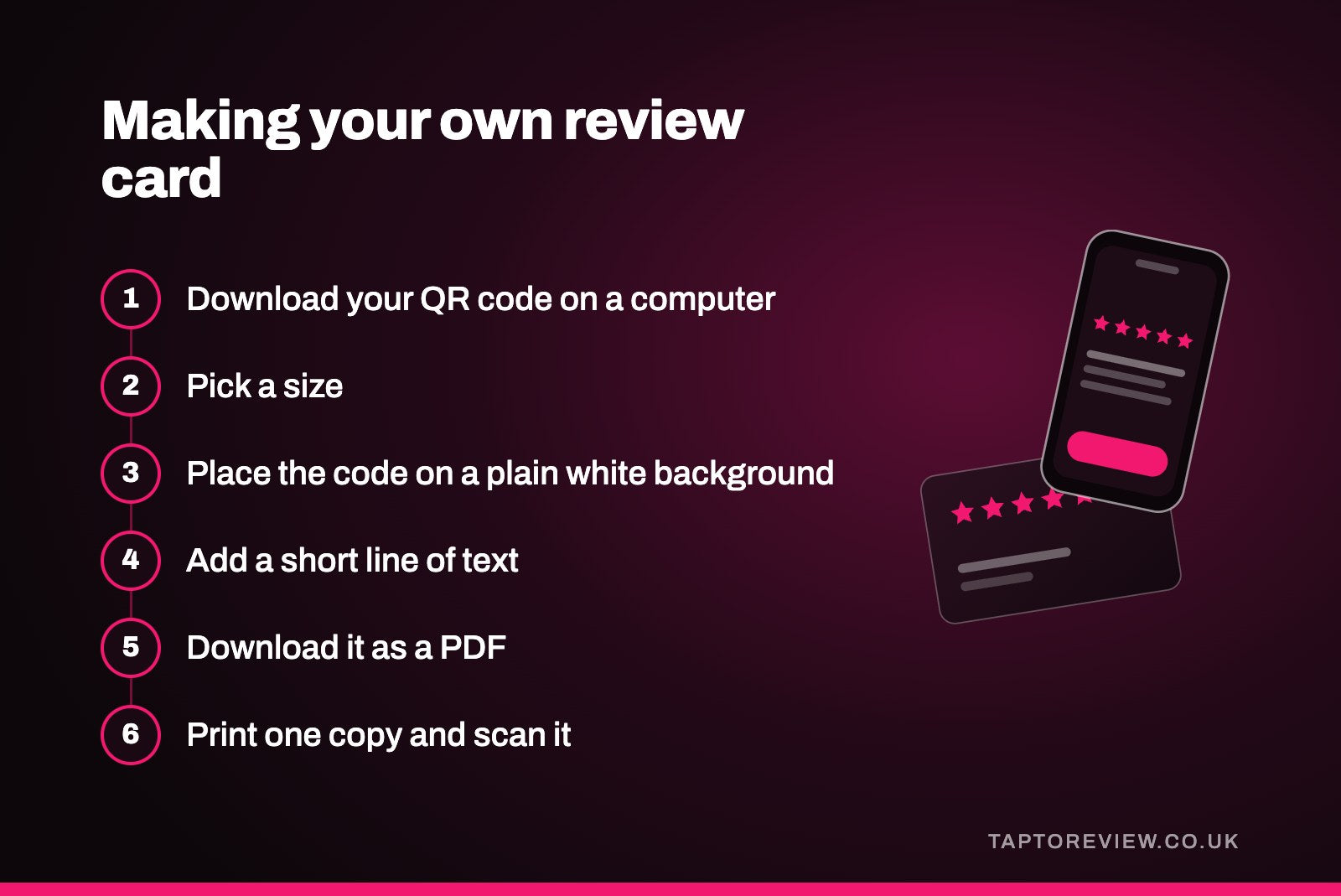
- Create a design at the size you want, or search Canva's free templates for business cards, table signs or terms like "review us" and pick one you like.
- Upload your QR code image and drag it onto the design.
- Keep the code dark on a plain white background with a clear border around it. Don't put it over a photo or pattern.
- Add a short line of text (see below) and your business name.
- Download it as a PDF. If it's going to a printer, choose the print-quality PDF option and include crop marks and bleed if the printer asks for them.
Making it in Word
Word has built-in business card and label templates, which line up with the pre-cut card sheets sold in stationery shops. Open one, insert your QR code as a picture in the first card, add your text, then copy it across to the rest. For a sign, start with a blank A5 or A4 page instead. When you're happy with it, save or export it as a PDF so the layout doesn't shift when you print it or send it to a print shop.
What to write on it
Keep it short and tell people what to do. A few examples:
- "Enjoyed your visit? We'd love a Google review. Scan with your phone camera."
- "Thanks for choosing us. If you have a minute, a Google review really helps a small business."
- "Scan here to leave us a Google review."
Two things to avoid. Don't offer anything in return, such as a discount for a review, because Google doesn't allow incentives and fake or paid reviews are against UK law too. Our guide to Google's review rules explains why. And be careful with Google's logo. Google's brand guidance says its logos can't be used without permission, so the safest choice is to write "Google" in your own font rather than pasting in a logo from an image search.
Printing and testing
For a handful of cards, thick card stock on a home printer is fine. For anything that will be handled a lot or seen by every customer, an online print shop will give a cleaner finish for not much money. Most UK printers ask for a few millimetres of bleed around the edge, and the print-quality PDF from Canva handles that.
Before you order a big batch, print one copy and scan it with an iPhone and an Android phone. If it doesn't open your review form straight away, make the code bigger or darker, and check that a glossy finish isn't causing glare under your lights.
A printed card works on any phone with a camera. If you mostly ask customers face to face, an NFC card they tap is quicker, and our article on NFC vs QR code compares the two. Our Google review cards are £30 each and arrive programmed with your link. Plenty of businesses use both, with a printed code on receipts and a card or stand at the counter.
Common questions
Does Canva have Google review templates?
Canva has many free business card and sign templates you can adapt. Search for "review us" or "feedback", then swap in your own QR code from Google.
Is there an official Google review card template?
Not that we can find at the moment. Google's free QR code is official, so you can build your own card around it.
Can I download the review QR code on my phone?
Google currently only offers the QR code download on a computer. You can still copy and share your review link from a phone.
What size should the QR code be on a card?
Around 2cm to 3cm across is usually enough on a business card that people hold in their hand. Test it before printing a batch.